Swabian Instruments - 施瓦本仪器® logo联系我们

Exporting Data and Saving Plots

Learn how to export raw data and analysis results, and how to save plots, using the Time Tagger API and Time Tagger Lab.

Saving Raw Data to a Text File

To save raw data into a text file, for instance to perform custom analyses, use the measurement class TimeTagStream, get the data using getData(), and save it, for instance using savetxt from the numpy library (numpy.savetxt), similarly to what’s shown below in Exporting Analysis Results as Text. Alternatively, you can use the measurement class FileWriter to store the raw data into a ttbin file. To save time tags as text from these files, please see save_timetags_as_text.py.

Saving Raw Data to a ttbin File

To save raw data into a ttbin file for offline analysis using our high-level API, use the FileWriter measurement class to store raw time tags into a compressed ttbin file. These data can be read back using the FileReader class. Additionally, ttbin files can be used as input to the TimeTaggerVirtual to replay the measurements offline, using the high-level API.

Exporting Analysis Results as Text

Please have a look at this minimal Python example code.

from Swabian import TimeTagger
import numpy as np

tagger = TimeTagger.createTimeTagger()

#Perform a Correlation Measurement
corr = TimeTagger.Correlation(tagger, 1, 2, 1, 1000)
corr.startFor(1e12)
corr.waitUntilFinished()

#get the data
data = corr.getData()
index = corr.getIndex()

# Save index and data vectors into a text file
data_to_save = np.column_stack((index, data))
header = 'Time Difference [ps]\tData Counts'
np.savetxt('filename.txt', data_to_save, header=header, fmt='%0.4f', delimiter='\t')

Generating and Saving Plots

The TimeTagger library does not provide functions to plot or save plots. To generate and save plots, you can use dedicated Python libraries such as matplotlib.

Exporting Data and Plots from Time Tagger Lab

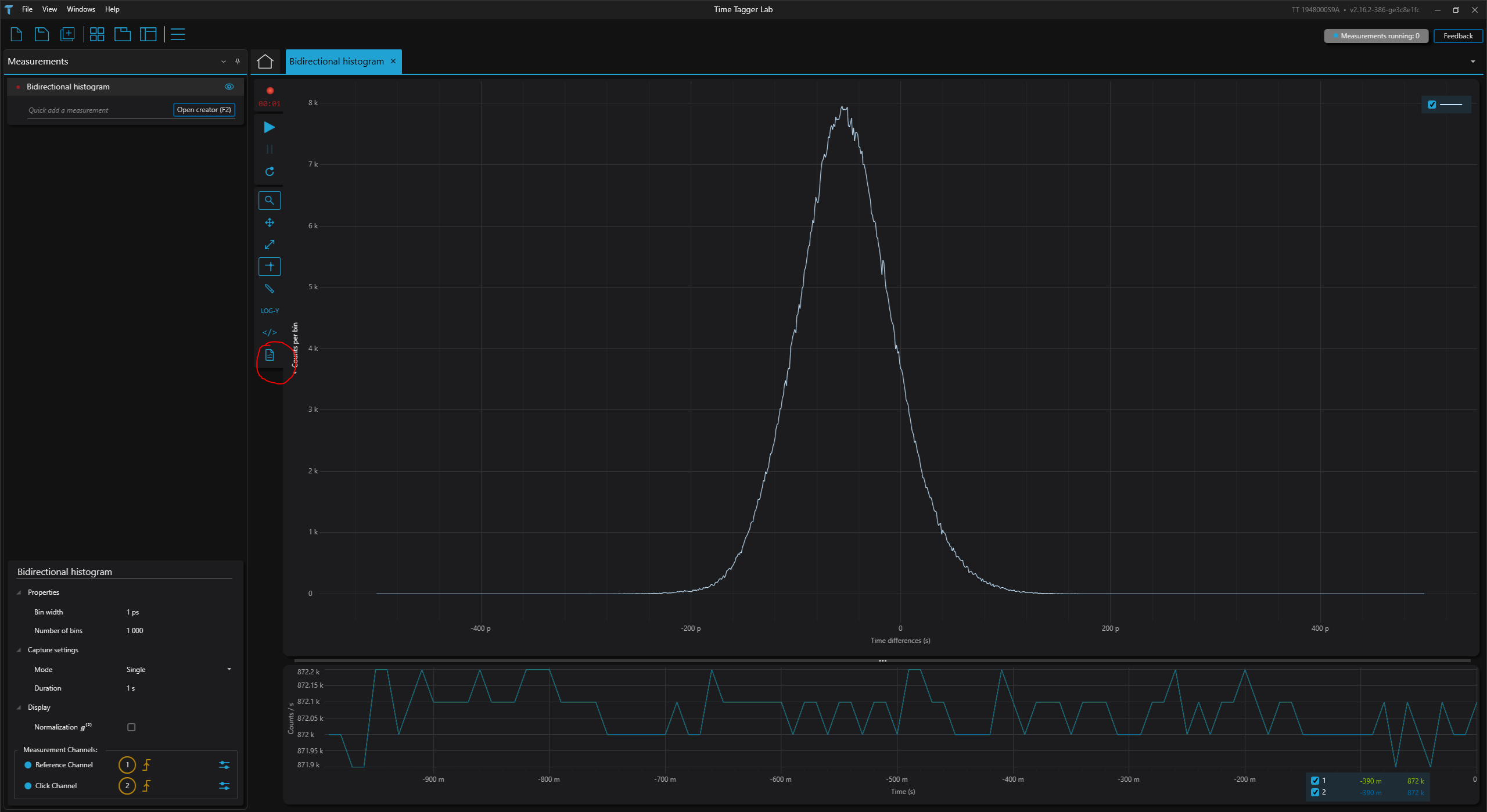
You can export your measurements’ data into a text file by clicking on the corresponding icon, circled in red in the screenshot below. Clicking on the same icon, you can also export the plot as a png figure.

Since release 2.22.0, you can also enable a switch on selected measurements to automatically save their data to file after each run, instead of exporting manually every time.

If you want to save the raw time tags from your channels, you need to use the FileWriter. The data will be stored in ttbin compressed files that can be read and analyzed using FileReader and TimeTaggerVirtual, respectively. Raw time-tag export via FileWriter is only available through the API, not through Time Tagger Lab.

Time Tagger Lab showing a bidirectional histogram, with the data-export icon in the left toolbar circled in red.
Cookie Policy
We use third party service providers, like Freshworks Inc ("Freshworks") to enable interaction with you on our website and/or our product. As a data processor acting on our behalf, Freshworks automatically receives and records certain information of yours like device model, IP address, the type of browser being used and usage pattern through cookies and browser settings. Freshworks performs analytics on such data on our behalf which helps us improve our service to you. You can read about the cookies Freshworks' sets in their cookie policy here.